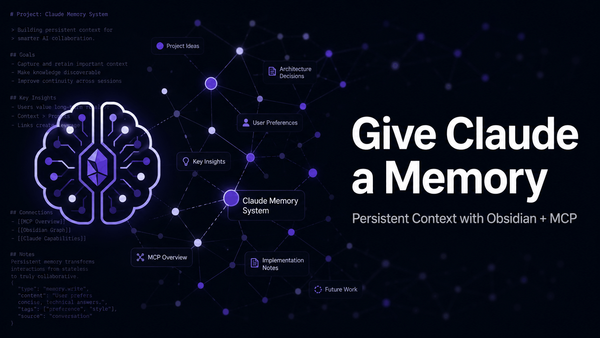
Claude is genuinely useful for engineering work — debugging, drafting configs, talking through architecture. But close the tab and it forgets everything. Next session, you're starting from scratch.
That's by design. Each conversation is stateless. For one-off tasks that's fine, but for anything with continuity — an ongoing incident investigation, a multi-sprint project, a production system you're iterating on — you end up re-explaining yourself every single time. It gets old fast.
Here's how I fixed it: Obsidian.
The Problem
Claude has no persistent memory between conversations. Anthropic does have a built-in memory feature, but it's automatic and opaque — you can't tell it "remember that this service uses a non-standard health check endpoint" and trust that detail to surface when you need it three weeks later.
For anything with real depth — a multi-sprint project, an evolving system design, production context that takes five minutes to re-establish — that's friction you feel every session.
Why Obsidian
Obsidian is a note-taking app built on plain Markdown files stored locally. No proprietary format, no cloud lock-in. Your notes are just .md files in a folder — version-controllable with Git, readable by anything, and as durable as your filesystem.
That's the key detail: if your notes are Markdown files and Claude can read Markdown files, your notes become something Claude can work with directly.
Why It Works for Engineering Context
Think about what you actually want Claude to carry between sessions: the decisions made in last week's architecture review, which approach you already ruled out and why, the quirks of a legacy service you're refactoring, the Jira tickets driving the current sprint.
That's exactly what a well-maintained set of notes contains. The pairing works because:
- You control the content. You decide what's written down. Claude reads what you give it, not some auto-generated summary you can't inspect or correct.
- It's bidirectional. Claude can read your notes and write to them — appending a decision log, updating ticket status, creating a dated session summary.
- It's persistent. Notes survive closed tabs and weeks of inactivity. Context is always there when you come back.
- It's transparent. No black box. Everything Claude knows from your vault, you can read yourself.
A concrete example: I keep a note for each active project — current status, architecture decisions, open questions, links to relevant tickets. When I open a new Claude session, I point it at the note. It immediately has everything it needs. No re-briefing, no copy-pasting Jira descriptions, no "let me remind you where we left off."
Setting It Up
I'll cover a publicly accessible MCP setup (for use with Claude.ai on the web) in a future post.
Two components: an Obsidian plugin that exposes your vault via a local REST API, and an MCP server that connects Claude Desktop to it.
Prerequisites
The MCP server runs via npx, which requires Node.js to be installed on your machine. If you don't have it already:
macOS (recommended): Install via Homebrew. If you don't have Brew yet, install it first:
/bin/bash -c "$(curl -fsSL https://raw.githubusercontent.com/Homebrew/install/HEAD/install.sh)"
Then install Node:
brew install node
Windows: Download the installer from nodejs.org.
Verify the install worked:
node --version
npm --version
Both should return a version number. Once Node is in place, npx is available and the MCP config below will work.
Step 1: Install the Obsidian Local REST API Plugin
In Obsidian, go to Settings > Community Plugins > Browse and search for Local REST API. Install and enable it.
The plugin starts a local HTTP server on port 27124 that exposes your vault over REST — read, search, write, all over localhost. Grab the API key from the plugin settings.
It supports HTTPS on port 27124 (self-signed cert) or plain HTTP on 27123. Either works for local use.
Step 2: Configure the MCP Connection
Claude Desktop (macOS/Windows) — add to your MCP config (~/Library/Application Support/Claude/claude_desktop_config.json on Mac):
{
  "mcpServers": {
    "obsidian": {
      "command": "npx",
      "args": [
        "-y",
        "mcp-remote",
        "https://127.0.0.1:27124/mcp/",
        "--header",
        "Authorization: Bearer YOUR_API_KEY_HERE"
      ],
      "env": {
        "NODE_TLS_REJECT_UNAUTHORIZED": "0"
      }
    }
  }
}
Replace YOUR_API_KEY_HERE with the API key from the plugin settings. The NODE_TLS_REJECT_UNAUTHORIZED: "0" flag is necessary because the Local REST API plugin uses a self-signed certificate — this tells Node not to reject it. This is safe in a localhost-only context.
Claude.ai (Web) — While technically possible to expose the Obsidian MCP over the internet, I haven't landed on a solution that clears corporate security requirements. I'll be addressing this in a separate project soon.
Step 3: Verify
Ask Claude to list the files in your vault root. If the MCP is connected, it'll return your folder structure. If not, check the API key and confirm Obsidian is running — the REST API only works while the app is open.
Troubleshooting: Self-Signed Certificate Error
If Claude Desktop fails to connect and you see an error like this in the logs:
Connection error: [TypeError: fetch failed]
cause: Error: self-signed certificate
code: 'DEPTH_ZERO_SELF_SIGNED_CERT'
This is the most common setup issue. The Local REST API plugin runs on HTTPS with a self-signed certificate, and Node.js rejects it by default.
The fix is already in the MCP config above — the env block:
"env": {
  "NODE_TLS_REJECT_UNAUTHORIZED": "0"
}
If you're seeing this error, double-check that your config includes that block exactly as shown. It's easy to miss when adapting config snippets from other sources. Once it's in place and you restart Claude Desktop, the error goes away.
NODE_TLS_REJECT_UNAUTHORIZED to 0 disables certificate validation for this process. In a localhost-only setup this is acceptable — you're not exposing anything to the network. If you ever move to a publicly accessible MCP setup, this approach changes entirely and certificate validation should be properly configured.Teaching Claude Your Vault
Getting the MCP connected is the technical hurdle. But the difference between a setup that's merely functional and one that actually saves you time is teaching Claude how your vault works — where things live, what's off-limits, and what to do at the start and end of a session.
Two files do that work.
CLAUDE.md — The Session Bootstrap
Create a file named CLAUDE.md in the root of your vault. Claude Desktop reads this automatically at the start of every session. Think of it as your standing instructions — vault path, owner context, folders to never touch, and pointers to deeper instruction files.
Mine looks like this:
# Claude Instructions

This is [Your Name]'s Obsidian vault. At the start of every session:

1. Read `Meta/Claude Instructions.md` — vault structure and behavior rules
2. Read `AI/Memory/User Profile.md` — user profile and context

## Quick Reference
- **Vault path:** /path/to/your/vault
- **MCP:** Obsidian Local REST API on https://127.0.0.1:27124/
- **PSWD/ folder:** Never open, read, or reference under any circumstances

## At Session End
- Update `AI/Memory/` if anything new was learned
- Write a session log to `AI/Logs/YYYY-MM-DD Session.md` if the session was substantive
- Drop follow-up items in `AI/Inbox/`
The PSWD/ exclusion is worth calling out explicitly — if you keep any credentials or tokens in your vault, name the folder and tell Claude to never touch it. It will respect that instruction consistently.
Meta/Claude Instructions.md — Vault Structure and Behavior Rules
This is the deeper reference file — a full map of your folder structure and rules for how Claude should behave when reading and writing. Having this separate from CLAUDE.md keeps the bootstrap file short while giving Claude a complete picture when it needs it.
The behavior rules that matter most:
- New notes go to
AI/Inbox/unless you specify otherwise — staging area, not scattered across the vault - Memory updates go to
AI/Memory/— update existing files, don't create duplicates - Session summaries go to
AI/Logs/namedYYYY-MM-DD Session.md - Decisions get logged in
Decisions/Work/orDecisions/Personal/when relevant
Recommended Folder Structure
This is the scaffold I set up alongside the MCP connection. You don't need all of it on day one, but having the structure in place means Claude knows where to put things from the start:
vault/
├── CLAUDE.md                  # Session bootstrap — read automatically at start
├── AI/
│   ├── Memory/                # Persistent facts Claude maintains about you and your context
│   ├── Logs/                  # Session summaries (YYYY-MM-DD Session.md)
│   ├── Inbox/                 # Staging area — Claude drops notes here for you to review
│   └── Templates/             # Prompt templates and reusable system prompts
├── Meta/
│   └── Claude Instructions.md # Full vault map and behavior rules
├── Projects/                  # One note per active project
├── Work/                      # Professional notes, team context, org structure
├── Decisions/
│   ├── Work/                  # Logged work decisions with context and rationale
│   └── Personal/              # Personal decisions
├── Dev/                       # Code snippets, project notes, technical references
├── Blog/
│   ├── Drafts/
│   └── Posted Articles/
├── Clippings/                 # Saved articles and links
└── Archive/                   # Retired or inactive content
The AI/ folder is the engine. Memory/ is what makes sessions feel continuous — Claude reads it at the start and updates it as it learns new things about your context. Inbox/ is the default drop zone for anything Claude creates unprompted, so notes don't end up scattered. Logs/ gives you a running record of what you've worked on together.
The rest of the structure is just good vault hygiene — adapt it to match how you actually work.
How to Use It
Scope Your Notes to What Makes Sense
Notes don't have to be one-size-fits-all. You can keep broad reference notes that apply globally across everything you work on — team conventions, service ownership, deployment topology — or you can keep them tightly scoped to a specific project, ticket, or task. Just tell Claude which note (or notes) to read at the start of a session and it'll calibrate accordingly. A note named PROJ-4821.md with context specific to that ticket is just as valid as a general auth-service.md covering the whole system.
Project Context Notes
For any active project, keep a dedicated note: status, repo, tech stack, architecture decisions, open questions, links to relevant tickets. Point Claude at it at the start of a session and skip the re-briefing entirely.
Template I use:
# Project Name

**Status:** [Active / On Hold / Done]
**Repo:** org/repo
**Last Updated:** YYYY-MM-DD

## Architecture
[Key decisions and rationale]

## Open Questions
[Unresolved design or implementation questions]

## Issues Resolved
[What broke, root cause, fix]

## Pending
- [ ] PROJ-123: Thing 1
- [ ] PROJ-456: Thing 2
Session Logs
At the end of a session, ask Claude to summarize what was decided and append it to the project note. "Summarize what we just worked through and append it to the auth-service note under a Session Log section." Next time you pick it up, that context is waiting.
Reference Notes
Anything you explain to Claude more than once belongs in a reference note. Service ownership and dependencies. Team conventions. Architectural constraints. Deployment topology. Write it once, reference it when relevant.
A Few Tips
Keep Obsidian running. The REST API only works while the app is open.
Structure deliberately. I use top-level folders like Projects/, Services/, Architecture/, Work/. Clean enough to navigate, specific enough to be useful.
Review what Claude writes. Claude writing to your vault is useful but deserves a sanity check. It's a collaborator, not ground truth.
Use frontmatter for metadata. Status, tags, last-updated — frontmatter YAML is readable by the MCP and useful for filtering.
The Bottom Line
Claude's stateless nature is a real limitation for sustained engineering work. Obsidian's plain-Markdown, local-first approach is a natural fix. Wire them together and you get a persistent context layer you fully own and control.
Sessions pick up where they left off. You stop re-explaining your stack to a tool that should already know it. The more you use it, the more useful it gets.